
Adopting UniFi Devices
This article will guide you through the process of adopting your Unifi devices such as Access Points, Switches and USG to your new Cloud Unifi hosted controller. Note: UXG-Pro and Flex Mini Unifi devices have different adoption instructions.
NOTE: Your inform URL is the name of your controller in this format: http://example.cloudunifi.com:8080/inform (replace "example" with your hosted controller id)
ATTENTION: Please ensure you are not running the Unifi controller software locally on your computer. AP’s will not show up in these tools if they have been auto-adopted by a local running Unifi controller.
SSH
If you can SSH into the device, it's possible to do L3 adoption via CLI command:
NOTE: A factory default device has a username and password of ubnt (Otherwise you will need to know your device username and password)
-
Make sure the device is running fairly recent firmware.
-
Make sure the device is in the factory default state. If it's not, you run the following command or complete a physical factory reset of the device:
sudo syswrapper.sh restore-default- SSH into the device and type the following and hit enter, substituting "example.cloudunifi.com" with the domain name of your hosted UniFi Network Controller:
set-inform http://example.cloudunifi.com:8080/informATTENTION: You may need to issue this command twice for the device to show up on the controller and be ready for adoption.
- After issuing the set-inform, the UniFi device will show up for adoption in the Devices section of the controller. Once you click Adopt, the device will appear to go offline or have the status of "Adopting" then proceed to "Provisioning" and "Connected".
ATTENTION: If the device does not show up for adoption on the controller, you may have something blocking inform traffic port 8080 outbound on your network or computer. Check to make sure you are not blocking or modifying this traffic on your networks firewall, proxy or gateway device. You may also need to disable your Windows firewall when issuing the inform request.
Mobile App
- After installing the UniFi Mobile App (Available in iOS App Store & Android PlayStore), launch the app.
NOTE: Your mobile device must be connected to the same network as your devices, and must be able to access the controller directly (using HTTP). A public IP and/or port forwarding may be necessary. The inform port of the controller must be 8080.
- Select your Controller from the list, or tap the "Add Controller" to log in and add your controller.
NOTE: The iOS app has changed recently. To add a new Cloud UniFi controller, tap on the user icon in the top left, then select "Discover Local Network Devices", then tap "Need Help?", then select "Manual Setup". Here you can add your hosted controller details to sign in and add your controller to the UniFi iOS app. Please use the hostname only in the "IP Address/URL" field.
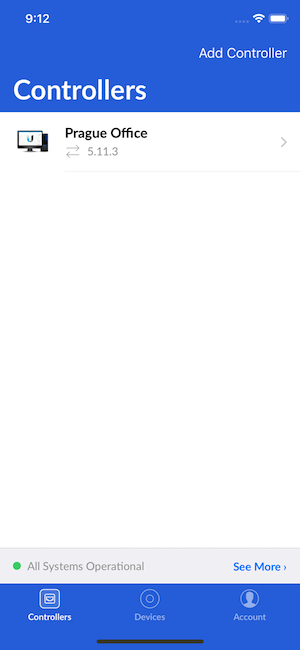
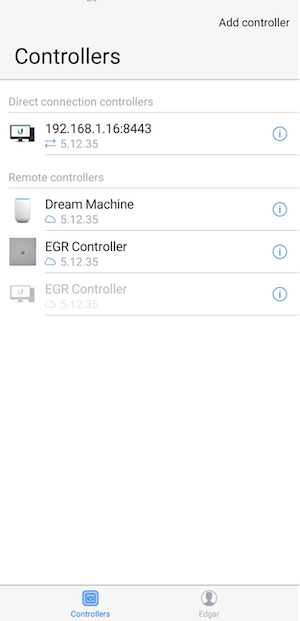
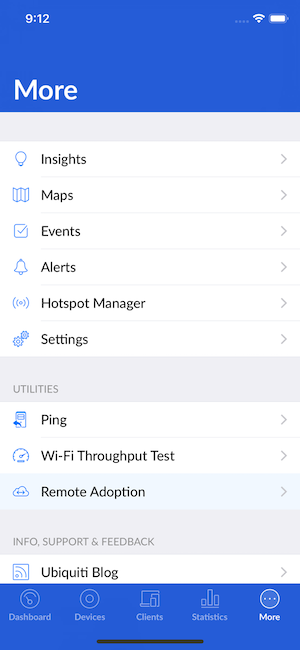
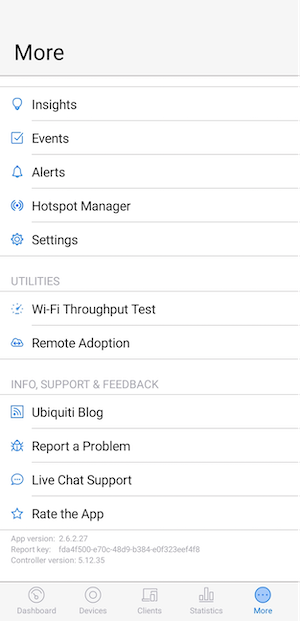
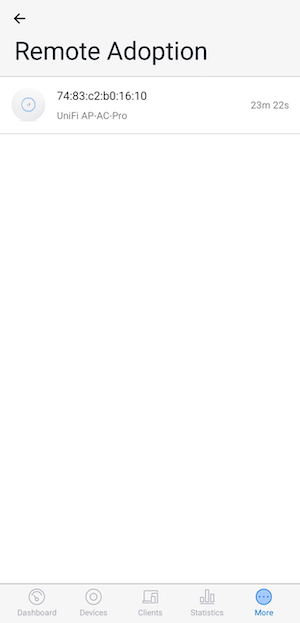
- For iOS: Once logged in to the Controller, tap More. There will be a Layer 3 Adoption option under Utilities. For Android: Once logged in to the Controller, tap More, then click on Remote Adoption from the menu.
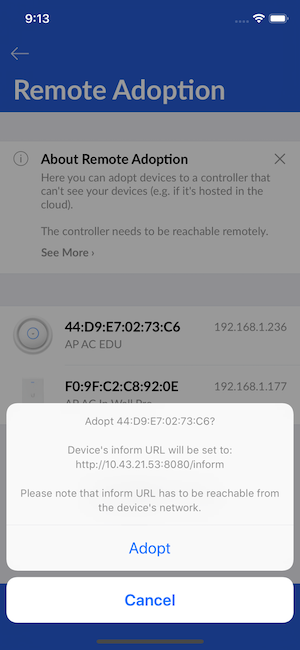
- Devices will be displayed on this screen. Tap on the device that is to be adopted and select Adopt.
- After a few seconds (15-30 seconds, times will vary) the device will appear under the Devices section, which will be accessible by clicking on the Devices icon on the bottom menu bar.
UniFi Toolkit
The UniFi Toolkit is a free tool that scans your local network for factory-default UniFi devices and adopts them to your Cloud UniFi controller. It is available for Windows, macOS, and Linux.
Download: UniFi Toolkit
NOTE: Your computer must be on the same Layer 2 network as your UniFi devices. The toolkit requires no installation — just download and run the single binary for your platform.
Desktop App (macOS)
A desktop application with a graphical interface is available for macOS. Download the DMG installer from the releases page, open it, and drag the app to your Applications folder.
Interactive Mode
- Open a terminal and run the toolkit:
./unifi-toolkit-
Select Adoption Mode when prompted. The toolkit will automatically detect your local subnet and scan for factory-default UniFi devices on the network.
-
Enter your controller hostname when prompted, for example
example.cloudunifi.com(replace "example" with your hosted controller id). Enter only the hostname, not the full inform URL. Leave the inform port at the default of 8080. -
Select the devices you want to adopt. The toolkit will connect to each device via SSH using default credentials and set the inform URL automatically.
-
Open your hosted UniFi Network Controller and go to the Devices section. Your devices will appear with a status of "Pending Adoption" — click Adopt for each device.
-
The device status will change from "Pending" to "Adopting" to "Provisioning", then finally to "Connected".
Non-Interactive Mode
For adopting devices without the interactive interface, run:
./unifi-toolkit --run -c example.cloudunifi.com -s 192.168.1.0/24Replace example.cloudunifi.com with your controller hostname and 192.168.1.0/24 with your local subnet.
NOTE: If you have changed the default device credentials from "ubnt", you can specify custom credentials with the -u and -p flags.
DHCP Option 43 and DNS Discovery
Both of these methods let a factory-default device find the controller on its own, with no SSH, app or toolkit step. On a Cloud UniFi controller, both need the Dedicated IP add-on.
Why a dedicated IP is required: A device that finds the controller through DHCP option 43 or a DNS record named unifi sends its inform requests to the host name unifi, not to your controller hostname. Cloud UniFi reaches your controller by its hostname rather than a fixed address. That is what lets us move your controller to faster hardware, recover it automatically onto another server if one fails, and keep tuning the platform without you reconfiguring a single device. A dedicated IP is reserved for your controller alone, so requests sent to that address are accepted whatever name the device uses.
To add a dedicated IP, log in to the Cloud UniFi portal, open the Billing page and choose Add Dedicated IP beside your subscription name. Your controller hostname moves to the new address automatically. If you do not want a dedicated IP, use the SSH, Mobile App or UniFi Toolkit methods above.
NOTE: A site that used either method with a self-hosted controller stops discovering new devices after moving to Cloud UniFi until a dedicated IP is added. Devices that were already adopted keep working, because the controller gives them your hostname as their inform address.
DHCP Option 43
-
Put the dedicated IP address in DHCP option 43 on the LAN your devices are connected to. Ubiquiti's guide UniFi Layer 3 Adoption for Remote UniFi Network Applications shows the format for common DHCP servers. Option 43 can only carry an IP address, not a hostname.
-
Factory-default devices on that LAN will appear in the Devices section of the controller as "Pending Adoption". Click Adopt.
-
Once your devices are adopted, go to Settings > System > Advanced, turn on the Inform Host override and enter your controller hostname (such as example.cloudunifi.com). Adopted devices then use the hostname instead of the bare IP address for their inform URL. This can take 5 to 10 minutes.
DNS Discovery
-
On your DNS server, create a record named
unifiin the domain your DHCP server hands out to devices, for exampleunifi.example.com. Point it at your controller, either as an A record with the dedicated IP address or as a CNAME to your controller hostname. -
Make sure DHCP gives your devices both the DNS server and the domain name (DHCP option 15), so that the short name
unifiresolves. -
Factory-default devices will look up
unifi, reach the controller and appear in the Devices section as "Pending Adoption". Click Adopt. -
Set the Inform Host override to your controller hostname as described in step 3 of the DHCP Option 43 method.
ATTENTION: If devices still do not appear, check that nothing on your network blocks or rewrites traffic to port 8080, then contact support with the output of the info command from one of the devices. We can see whether its inform requests are reaching the controller.