

#
Setting Up Hotspot and Guest WiFi
This article will guide you through setting up a Hotspot WiFi network on your UniFi controller, including Captive Portal and Passpoint configuration.
#
Creating a Hotspot WiFi Network
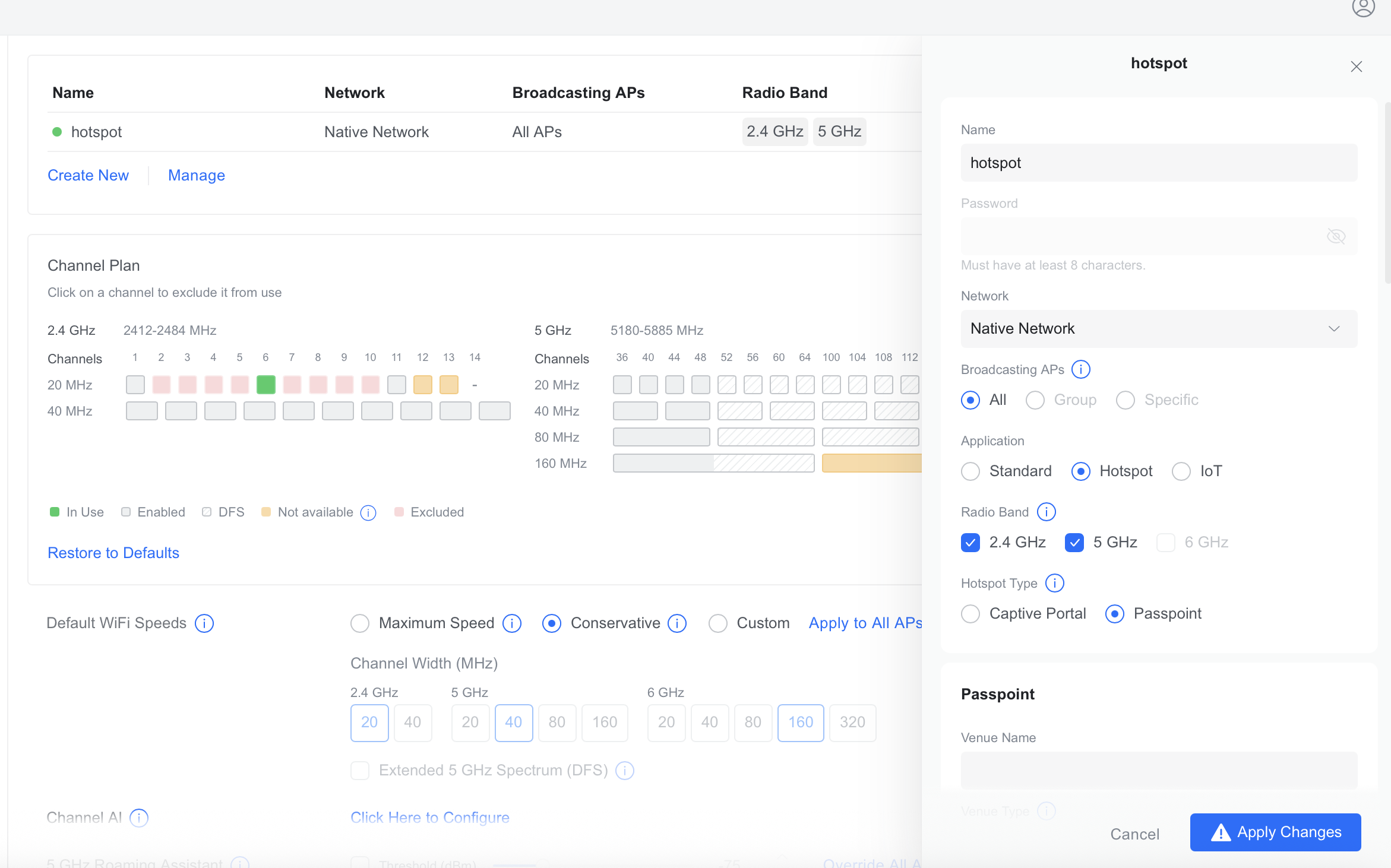
- In the UniFi Network Application, go to Settings > WiFi
- Click Create New to add a new WiFi network
- Enter a Name for your hotspot network (e.g., "Guest WiFi")
- Set a Password (must be at least 8 characters)
- Select the Network to associate with this WiFi (e.g., a dedicated guest VLAN)
- Choose which Broadcasting APs should broadcast this network (All, Group, or Specific)
- Under Application, select Hotspot
- Select your Radio Band (2.4 GHz, 5 GHz, or both)
- Choose a Hotspot Type: Captive Portal or Passpoint
- Click Apply Changes
#
Captive Portal
A Captive Portal presents guests with a landing page when they connect to your WiFi network. Guests must complete an authentication step before gaining internet access. To configure the Captive Portal, go to Insights > Hotspot and click Landing Page.
#
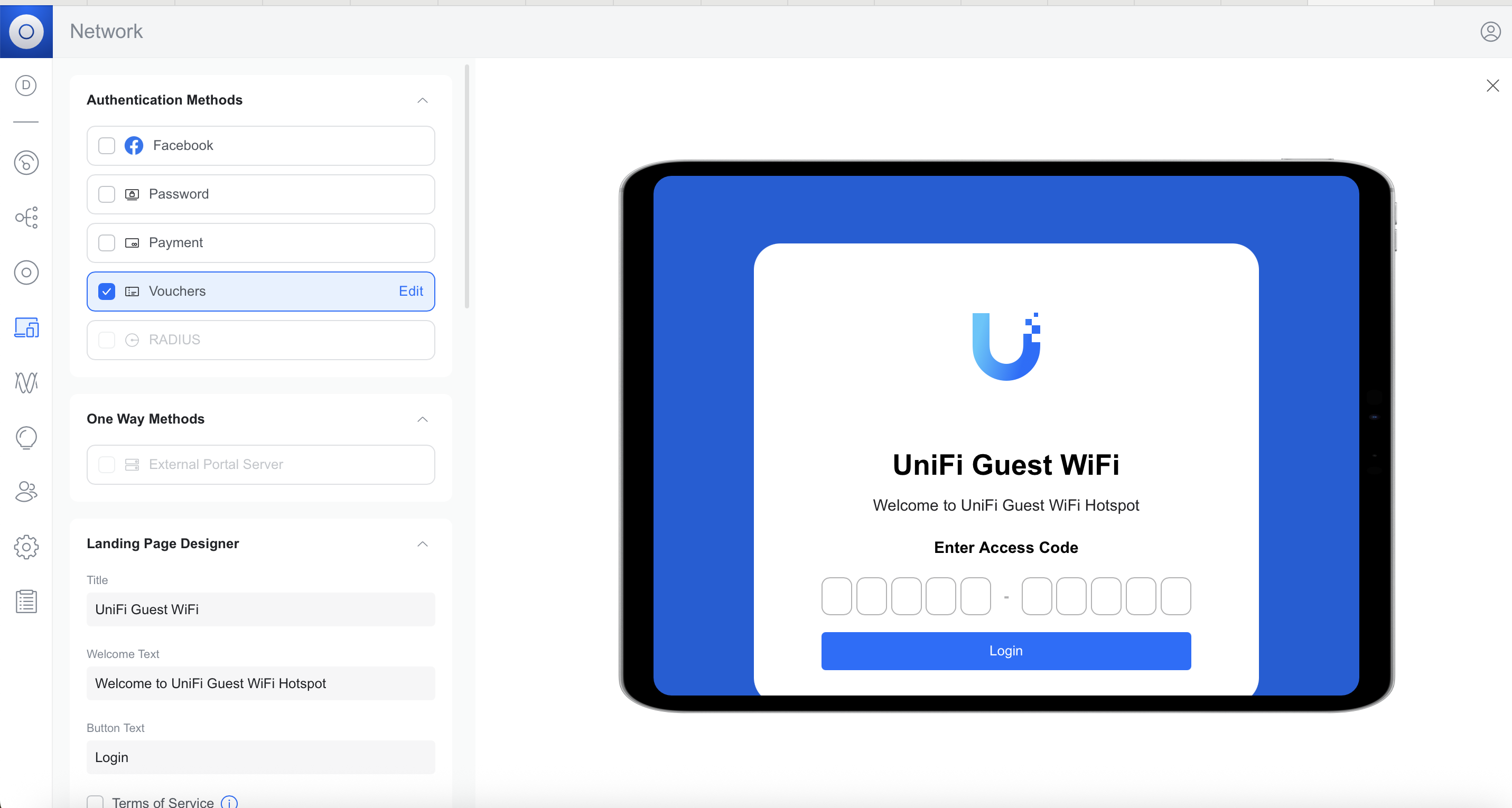
Authentication Methods
Select one or more methods that guests can use to authenticate:
- Facebook — Guests sign in with their Facebook account.
- Password — Guests enter a shared password that you define.
- Payment — Guests pay for access via Stripe integration.
- Vouchers — Guests enter a voucher code. Vouchers can be created with custom expiration times, bandwidth limits, and data quotas. Click Edit next to Vouchers to manage and generate codes.
- RADIUS — Authenticate guests against an external RADIUS server for enterprise-grade access control.
#
One Way Methods
- External Portal Server — Redirect guests to a third-party portal server for authentication. This is a one-way redirect; the external server handles the full authentication flow.
#
Landing Page Designer
Customize the appearance of your Captive Portal splash page:
- Title — The heading displayed on the portal page (e.g., "UniFi Guest WiFi").
- Welcome Text — A message shown below the title (e.g., "Welcome to UniFi Guest WiFi Hotspot").
- Button Text — The label on the authentication button (e.g., "Login").
- Terms of Service — Enable this to require guests to accept your terms before connecting. You can customize the terms text.
- Logo and Colors — Upload a custom logo and adjust the color scheme to match your branding.
A live preview of the landing page is shown on the right side of the screen as you make changes.
#
Landing Page Settings
These settings control how the Captive Portal redirects and secures guest traffic. Go to Insights > Hotspot > Landing Page > Settings to configure them.
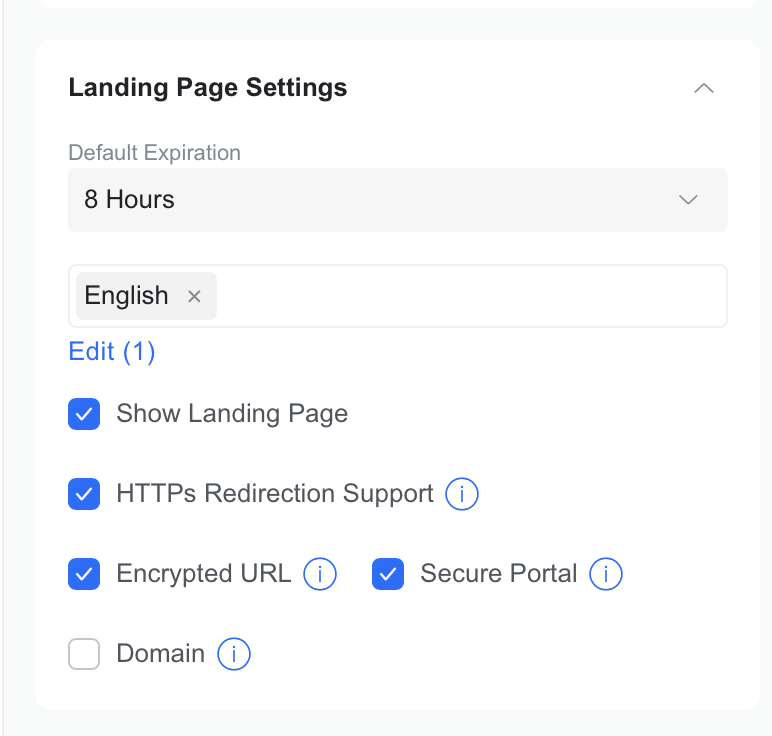
Default Expiration — How long a guest session lasts before they must re-authenticate (e.g., 8 Hours, 24 Hours, 7 Days).
Language — The language displayed on the portal page. You can add multiple languages by clicking Edit.
Show Landing Page — When enabled, the Captive Portal splash page is displayed to guests when they first connect. If disabled, guests are authenticated through the selected method without seeing a portal page.
HTTPS Redirection Support — When enabled, the controller intercepts HTTPS (port 443) connections in addition to HTTP (port 80) and redirects them to the Captive Portal. Since most modern browsers and apps default to HTTPS, enabling this helps ensure guests see the portal page. However, because the controller intercepts the HTTPS connection before the guest reaches their intended site, this may trigger SSL certificate warnings on some devices.
NOTE: If guests are being redirected to a custom URL after authentication and encounter "Cannot Verify Server Identity" errors, try disabling HTTPS Redirection Support.
Encrypted URL — When enabled, the parameters in the portal redirect URL (such as the guest's MAC address, AP information, and original destination) are encrypted. This prevents guests from tampering with the redirect URL to bypass authentication.
Secure Portal — When enabled, the Captive Portal page itself is served over HTTPS. This encrypts the communication between the guest's device and the portal, protecting any credentials or personal information entered during authentication. Recommended when using Password, Payment, or RADIUS authentication methods.
Domain — When enabled, the Captive Portal redirect uses the controller's hostname/FQDN (e.g.,
example.cloudunifi.com) instead of its IP address. Without this setting, guests may be redirected to the controller's IP address, which causes SSL/TLS certificate errors because the certificate is issued for the domain name, not the IP. Enable this and enter your controller's hostname to ensure the portal redirect matches your SSL certificate.
NOTE: For Cloud UniFi hosted controllers, enter your controller hostname (e.g., example.cloudunifi.com) in the Domain field. This should match the hostname shown in your browser when accessing your controller.
#
Authorization Access
Configure what guests can access before and after authentication.
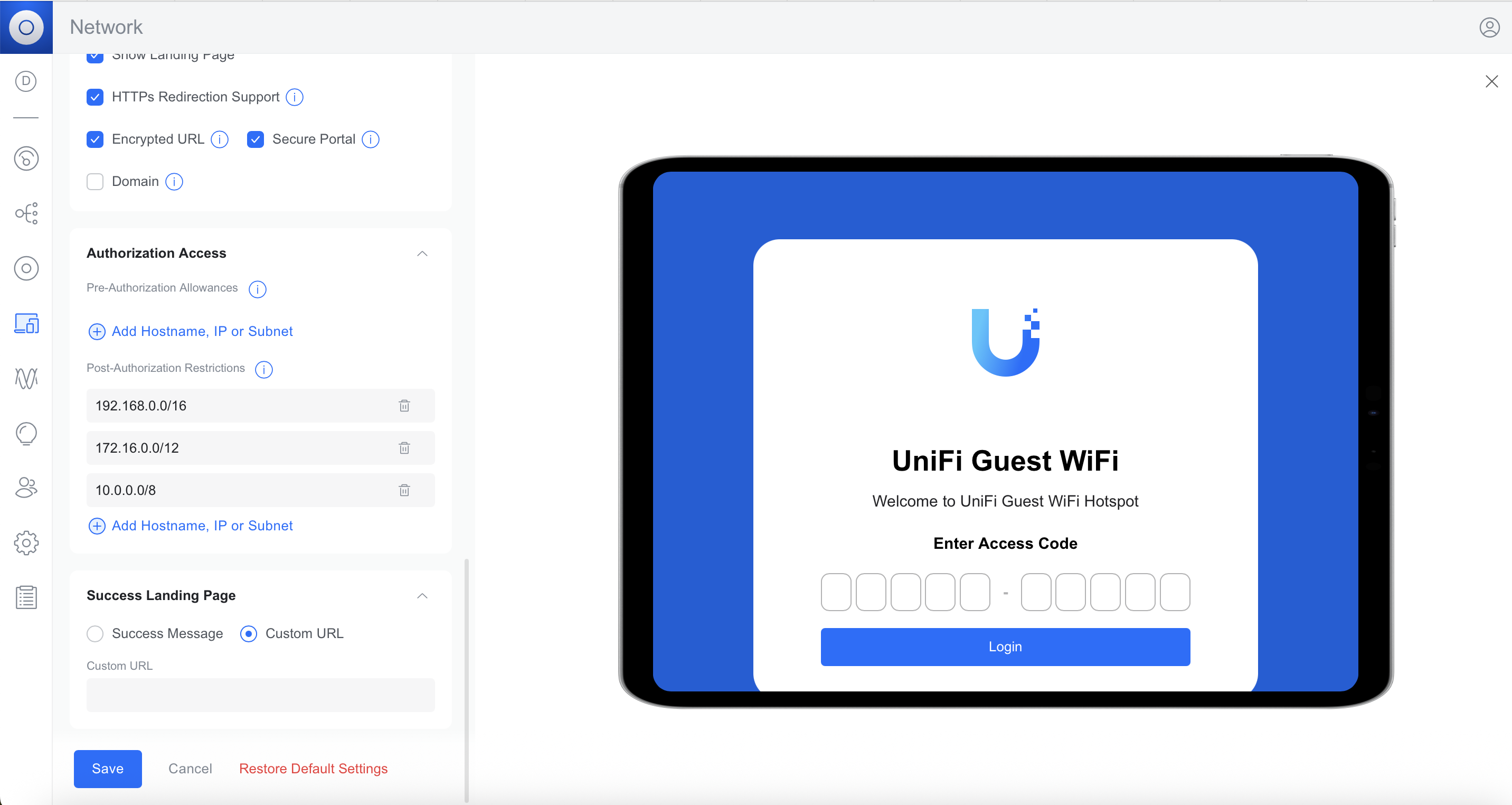
Pre-Authorization Allowances — Hostnames, IP addresses, or subnets that guests can access before authenticating. Use this to allow access to your portal domain, payment provider, or any external authentication service. Click Add Hostname, IP or Subnet to add entries.
Post-Authorization Restrictions — IP addresses or subnets that guests are blocked from accessing after authentication. By default, private network ranges (192.168.0.0/16, 172.16.0.0/12, 10.0.0.0/8) are restricted to prevent guests from reaching internal resources on your network.
#
Success Landing Page
After a guest successfully authenticates, you can control what they see:
- Success Message — Display a confirmation message on the portal page.
- Custom URL — Redirect the guest to a specific URL (e.g., your business website or a welcome page).
#
Passpoint
Passpoint (also known as Hotspot 2.0) is built on the IEEE 802.11u standard and allows guest devices to automatically discover and connect to your WiFi network without a Captive Portal or manual connection steps. Devices that support Passpoint can seamlessly authenticate and connect, similar to how a mobile phone connects to a cellular network.
To enable Passpoint, select Passpoint as the Hotspot Type when creating or editing a WiFi network.
Passpoint configuration requires specific values from your Passpoint provider (such as Google Orion, IronWifi, or OpenRoaming). Key settings include:
- Venue Name — The name of your location.
- Venue Type — The category of your venue (e.g., restaurant, hotel, retail).
- Network Type — The type of network being offered (e.g., Free Public Network, Personal Device Network).
- IPv4/IPv6 Address Type Availability — The IP address types available to connecting devices.
- NAI Realm — Network Access Identifier realm for authentication.
- Roaming Consortium List — Organization identifiers that allow devices to recognize and connect to your network.
- 3GPP Cellular Network — Mobile country and network codes for cellular integration.
- Domain Name — The domain associated with your Passpoint service.
NOTE: Contact your Passpoint provider for the specific values to enter in each field. For a detailed walkthrough, see Ubiquiti's guide: Setting Up Passpoint on UniFi Network.