

Updates on UniFi OS Server
UniFi OS Server and the Network application update from the console's own Updates page. You choose whether updates install automatically and at what time of day, and the console restarts for a few minutes while an update installs.
Where to see versions
Open Settings (the gear at the bottom of the left-hand bar), then Control Plane > Updates.
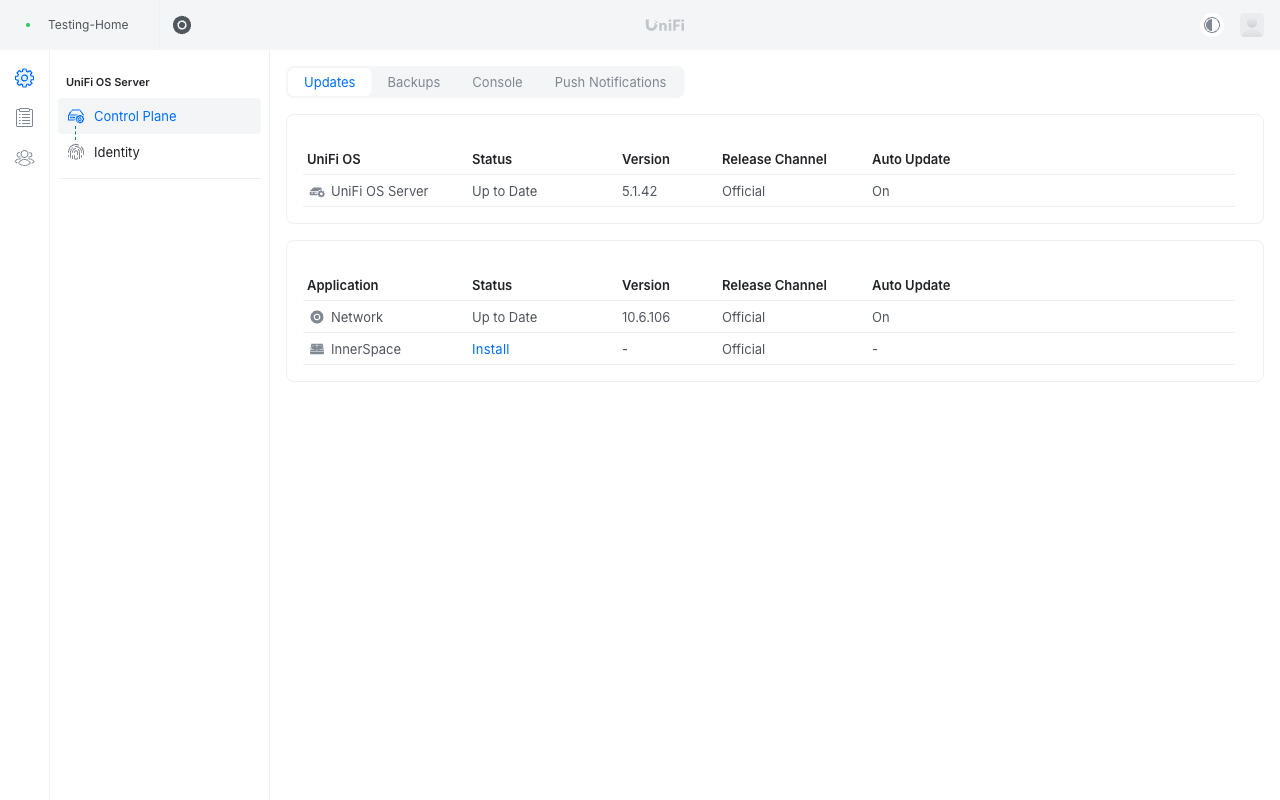
The page shows the UniFi OS Server version and the Network application version, and whether automatic updates are on for each.
Automatic updates and the maintenance window
Click the UniFi OS Server or Network row to change its update settings. You can turn Auto Update on or off, and set the time of day at which updates are allowed to install, so they land in a maintenance window that suits your sites.
- With Auto Update on, the console installs each release Ubiquiti publishes, at the time you set.
- With Auto Update off, the console stays on its current version until an update is applied. We test new UniFi OS Server and Network releases on our own consoles and can apply a tested release to yours on request.
Whichever you choose, the console restarts for a few minutes during an update. Your access points, switches and gateways keep passing traffic; you may be signed out of the console and the hotspot portal is unavailable for the duration.
The automatic upgrades switch in the customer portal applies to classic Network Application controllers. For a UniFi OS Server console, use the Auto Update setting here.
Holding a Network version
You can keep your console on its current Network release, for example to keep managing a USG gateway, which can't be managed from Network 11. See USG gateways and UniFi Network 10.6.
- Open Settings, then Control Plane > Updates.
- Click the Network row.
- Turn Auto Update off.
The Network application then stays on its current version until you turn Auto Update back on or ask us to apply an update. This holds even when UniFi OS Server itself updates: the UniFi OS Server row has its own Auto Update setting, and a UniFi OS Server update doesn't change the Network version.
Holding a version is a way to buy time, not a long-term setup. A held console doesn't get new Network features or fixes, and Ubiquiti hasn't said how long 10.6 will receive fixes.
Device firmware
Firmware for your access points, switches and gateways is separate, in the Network application's Devices section. Ubiquiti's UniFi Updates article explains the options.
If something goes wrong after an update
Contact us. We hold nightly backups of your console and can restore it if an update leaves it unusable. See Backups on UniFi OS Server.