
Users and Roles on UniFi OS Server
UniFi OS Server has one owner, any number of administrators, and roles that control what each person can do in the Network application and in the console settings. Users are managed from the Admins (People) page inside the Network application.
Where to find it
- Sign in to your console and open the Network application.
- Click People at the bottom of the left-hand bar. The page that opens is titled Admins.
The page lists every user with their status, email, last activity, role and permissions. The Owner is marked in the Role column.
The roles
Site Admin and View Only roles are scoped to the sites you assign in the Assignments column.
Adding a user
- On the Admins page click Create New, then Create New User.
- Enter a first name, last name and email address.
- Tick Admin to give the user a role. Leave it unticked for a user who only needs to sign in to services such as Identity.
- Choose the Network role and the console-settings role from the two dropdowns.
- Click Create.
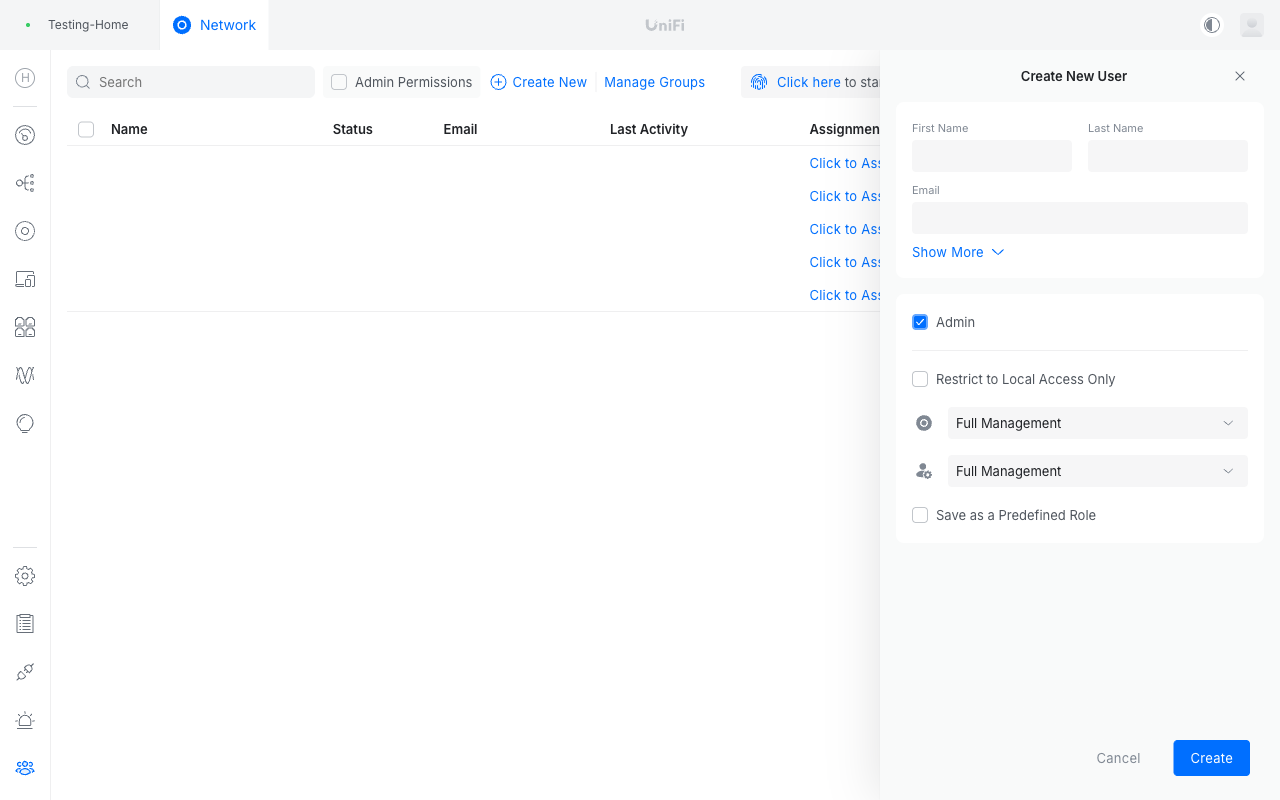
The user receives an invitation by email and signs in with a Ubiquiti account using that address. If they do not have one, the invitation walks them through creating it.
Local users: no Ubiquiti account
Tick Restrict to Local Access Only to create a user who signs in with a username and password on this console only.
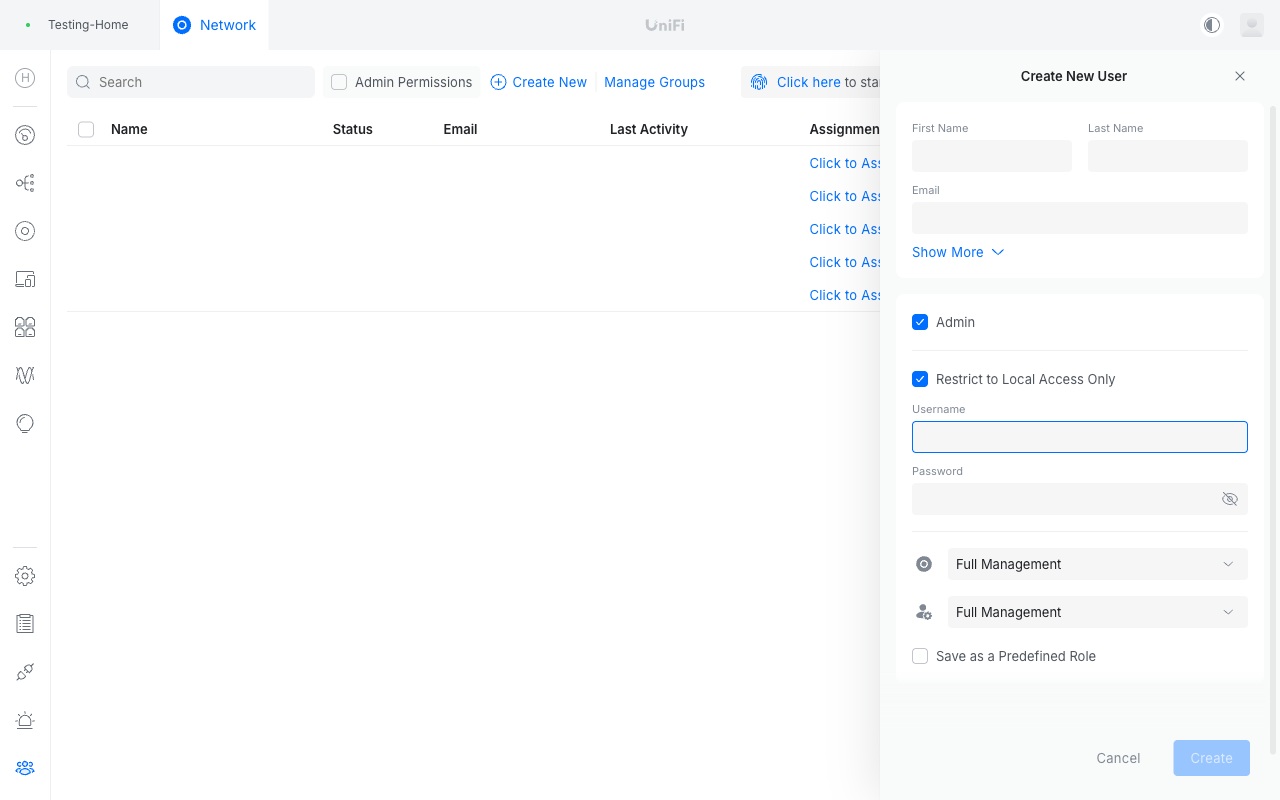
A local user:
- signs in at your console address with the username and password you set, not with the Ubiquiti sign-in option;
- cannot use Remote Access, unifi.ui.com or the UniFi mobile app, because those go through Ubiquiti accounts;
- can be given any role, including Super Admin.
Local users suit break-glass accounts and staff who will only ever use the console address. Everyone else is better invited by email. See Signing in to your console for the sign-in screens each type of user sees.
Roles in the Network application
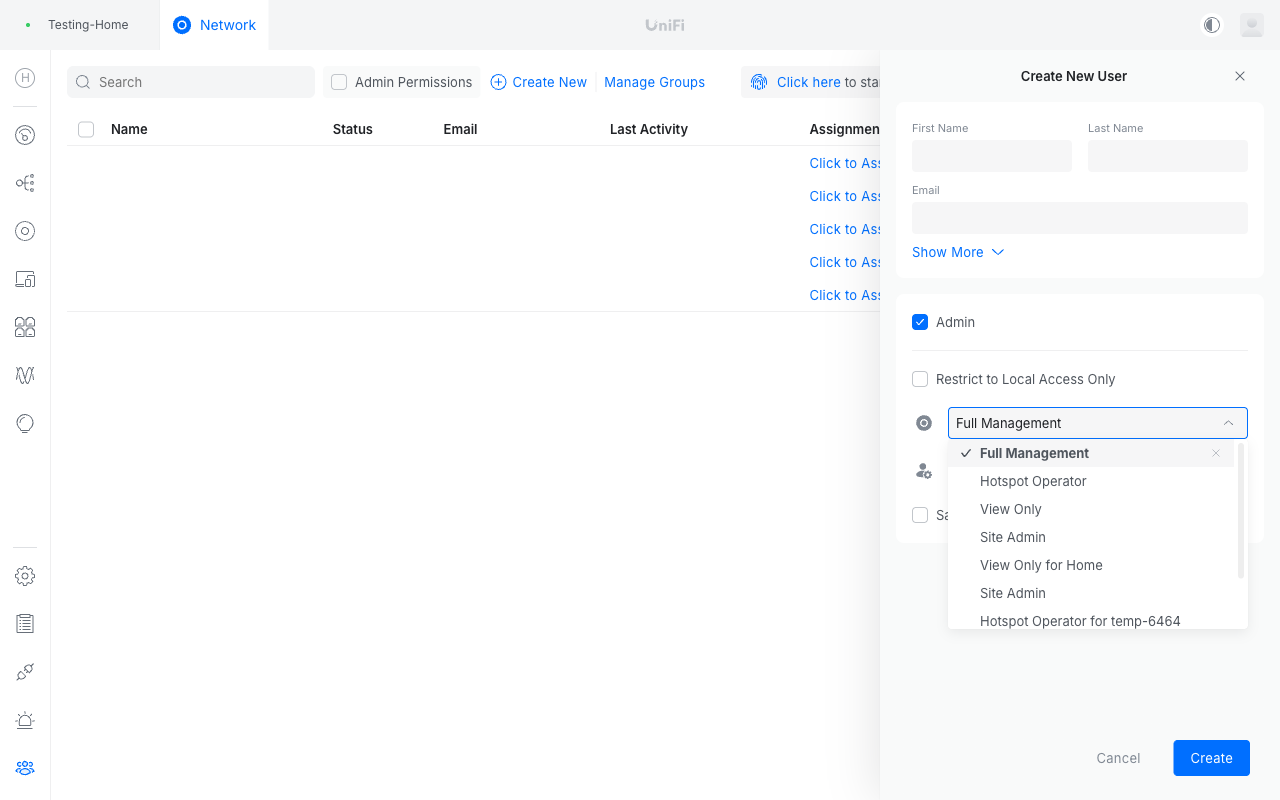
- Full Management: every setting on every site.
- Site Admin: full control of the assigned sites only.
- View Only: read access to the assigned sites.
- Hotspot Operator: the hotspot manager pages only, for front-desk staff issuing guest vouchers.
- Tick Save as a Predefined Role when creating a user to reuse a combination later.
Limited admins and Network 10.6
On Network 10.6.x, a user with a Custom, Site Admin or View Only role may see an error when opening the Network application's Settings. This is a UniFi interface bug, not a permissions problem on your console. Give the user Full Management if they need Settings, or wait for the fix from Ubiquiti.
Transferring ownership
Only the current owner can hand the console to another account, from their own account settings. Ubiquiti's guide covers the steps and what to do if the owner has lost access: Password Recovery and Ownership Transfer.
If your owner account is a local-only account, link it to a Ubiquiti account before you need Remote Access or the mobile app. Signing in to your console explains how.
Removing a user
Tick the user on the Admins page and use the remove action. Removing a user does not remove anything they configured.
If you migrated from the Network Application
Administrator accounts from your old controller were carried across as users here, with their passwords. Accounts that were linked to a Ubiquiti account on the old controller are linked here too; accounts that were local remain local, and can be linked later.