
Signing In to Your Console
Your console is at
https://yourname.netconsole.cloud. How you sign in depends on the kind of account you have: a Ubiquiti account, a local username, or, on a console set up without a Ubiquiti account, a console password.
Ubiquiti account
If you were invited by email, or you ran the setup wizard with a Ubiquiti account, sign in with your Ubiquiti account email and password. If your Ubiquiti account has multi-factor authentication turned on, you will be asked for the code as well.
The same account also signs in at unifi.ui.com and in the UniFi mobile app, provided Remote Access is enabled on the console. See Remote Access, Site Manager and the mobile app.
Local username
If the owner created you as a local user, sign in at the console address with the username and password they gave you. Local users cannot sign in at unifi.ui.com or in the mobile app, because those go through Ubiquiti accounts.
Console set up without a Ubiquiti account
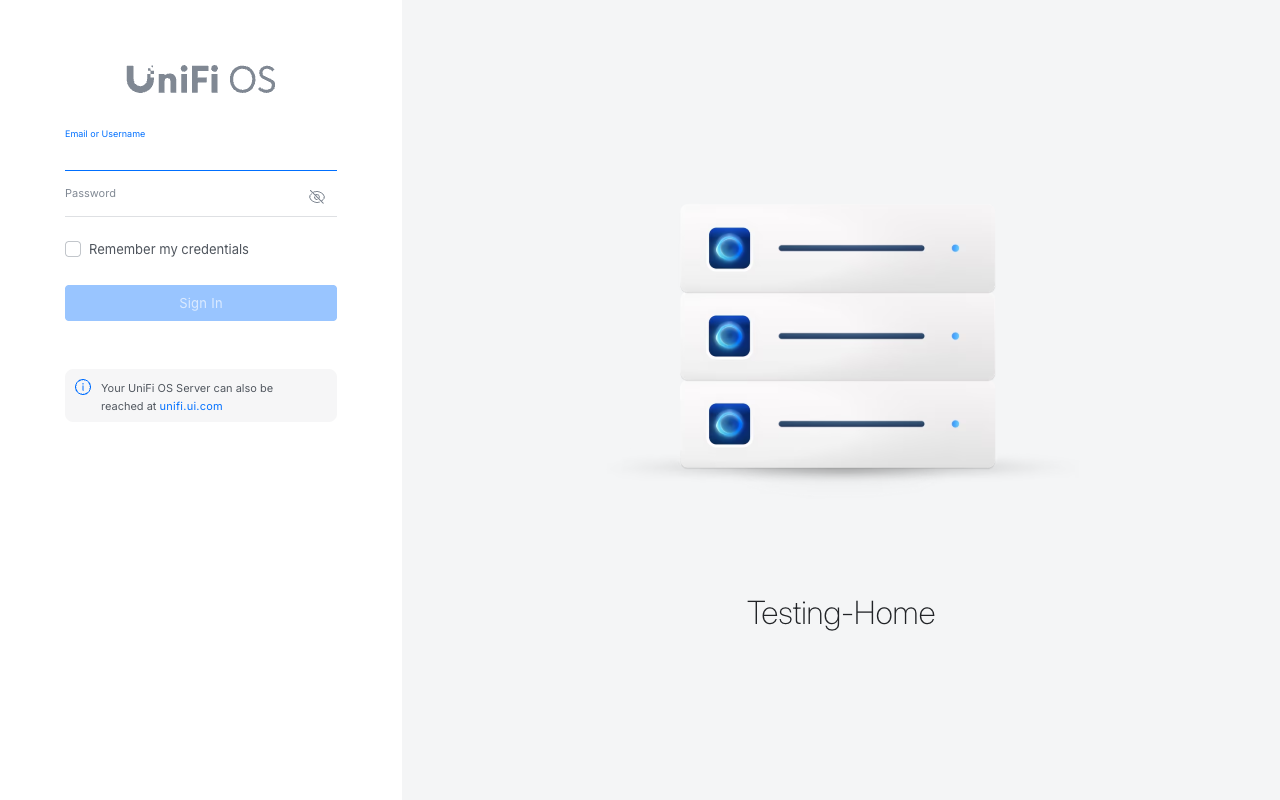
If the setup wizard was completed with Proceed Without a UI Account, the sign-in page asks only for a password. Enter the console password that was set during setup. The built-in owner account is called admin. Do not use the Ubiquiti sign-in route for this console; it does not know your local account.
"No permission to access this device"
This message has two common causes.
- You signed in with a Ubiquiti account that is not a user on this console. Ubiquiti accepted your password, but the console has no user with that email. Ask the console owner to invite that email address from the Admins page, or sign in with your local username instead. See Users and roles.
- You are a local user trying the Ubiquiti route. A local user has no Ubiquiti account behind it, so unifi.ui.com and the mobile app cannot open the console for you. Sign in at the console address.
Forgotten passwords
- Ubiquiti account: reset it at account.ui.com. The console is not involved.
- Local user: the owner or a Super Admin can set a new password from the Admins page.
- Owner locked out: contact [email protected] from the email address on your subscription and we will help you regain access. Ubiquiti's Password Recovery and Ownership Transfer article covers the self-service options.
Turning a local account into a Ubiquiti account
Create a new user with the person's email address and the same role, let them sign in with their Ubiquiti account, then remove the old local user.
Multi-factor authentication
Only Ubiquiti accounts offer multi-factor authentication, set up at account.ui.com. Local users have a password only, so keep local users to a minimum and give them strong passwords.