

Users and Roles in the Customer Portal
Everyone who looks after your Cloud UniFi account should have their own portal user. Admins invite people from the Users page and give each one a role: Admin, Tech or Billing. The role decides which parts of the portal that person can see and use.
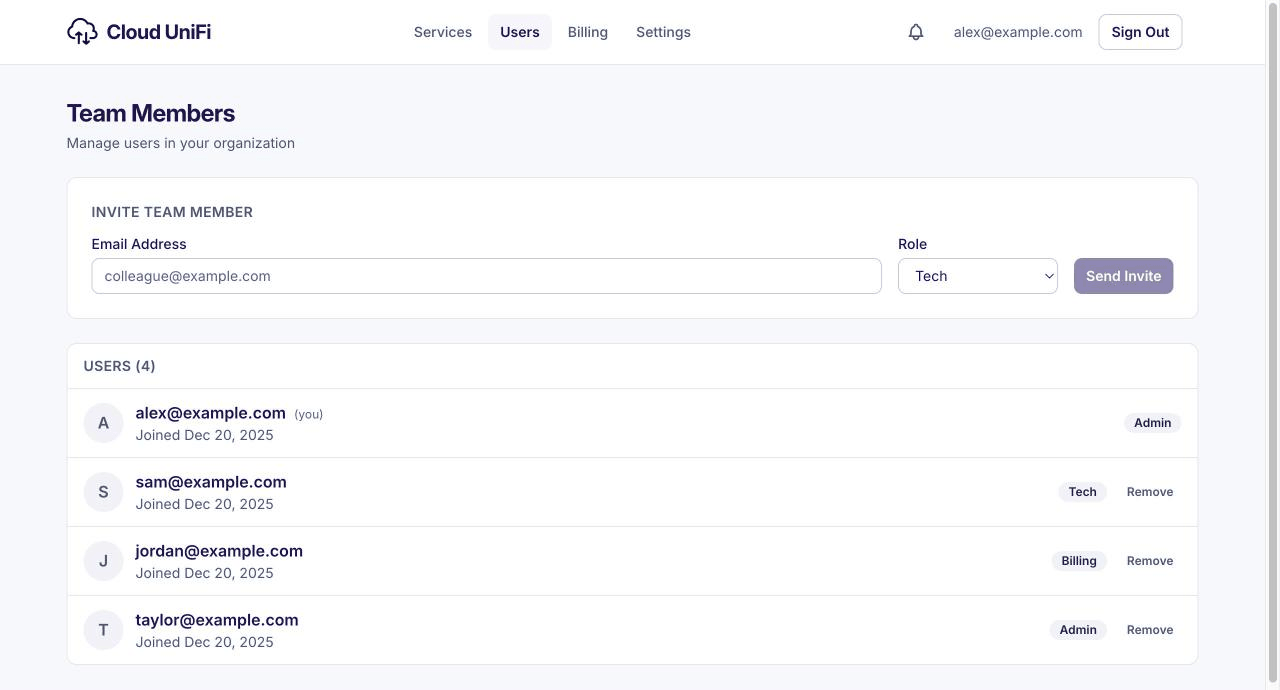
The three roles
A simple way to choose:
- Admin for the account owner and anyone else who should manage people and billing.
- Tech for your network team or an outside technician. They get every service control and backup, but no billing and no user management.
- Billing for accounts payable. They can pay invoices and change plans, but can't open or change your services.
Inviting someone
- Open Users.
- Under Invite Team Member, enter their email address and choose a role.
- Click Send Invite.
They get an email with a link to set up their own password. The link lasts 48 hours. Until they accept, the invite is listed under Pending Invites, where you can Resend it (with a fresh 48-hour link) or Revoke it. An invite that ran out is marked Expired: resend it.
Removing someone
Click Remove next to the person, add a reason if you like, and confirm. They lose access straight away. You can't remove yourself, and an account always keeps at least one admin. If you removed someone by mistake, contact us and we can restore their user.
Changing someone's role
Contact us at [email protected] or through the chat with the person's email address and the role they should have, and we'll change it.
Portal users are not controller admins
A portal user manages your Cloud UniFi account. It doesn't sign anyone in to your console, controller or UISP: those have their own admin accounts, managed inside the application.
- UniFi OS Server: see Users and Roles on UniFi OS Server.
- Classic UniFi Network Application: see Adding Super Admins.
When someone leaves, remove them in both places.
Keeping the account secure
- Give each person their own user rather than sharing one login, so you can remove one person without changing everyone's password.
- Each person can add a passkey, or turn on two-factor authentication with Enable 2FA, under Settings. See Setting up your portal account.
FAQ
I don't see the Users page
Only admins can see it. Ask an admin on your account to invite people or change your role.
The invite email didn't arrive
Ask them to check their spam folder, then click Resend next to the invite. Check the address is spelled correctly; if it isn't, revoke the invite and send a new one.
Can someone from another company manage our services?
Yes. Invite them with the Tech role. They see your services and their controls, but not your billing or your users.