Managing Your Service in the Portal
Each service in the customer portal has its own page with four tabs: Overview, Controls, Backup and Changelog. The Controls tab lets you restart your service, search for and remove devices, export a device list, manage custom domains and, on the classic Network Application, choose when to upgrade. What it shows depends on whether your service is a UniFi OS Server console, a standalone UniFi Network Application controller, or UISP.
Opening a service
Sign in at login.cloudunifi.com, open Services and click View Details on the service. The button at the top right opens the service itself: Open Console for UniFi OS Server, Open Controller for the Network Application, Open UISP for UISP.
Service pages are available to users with the Admin or Tech role. See Users and roles.
Overview
The Overview tab shows your plan, the number of devices against your plan limit, the software version (on UniFi OS Server, both the Network application and UniFi OS versions), your hostname and any custom domain or dedicated IP.
- UniFi services also show the Inform URL your devices use to reach the controller.
- UISP services also show the NetFlow collector address and port. See Connecting devices to UISP.
What's on the Controls tab
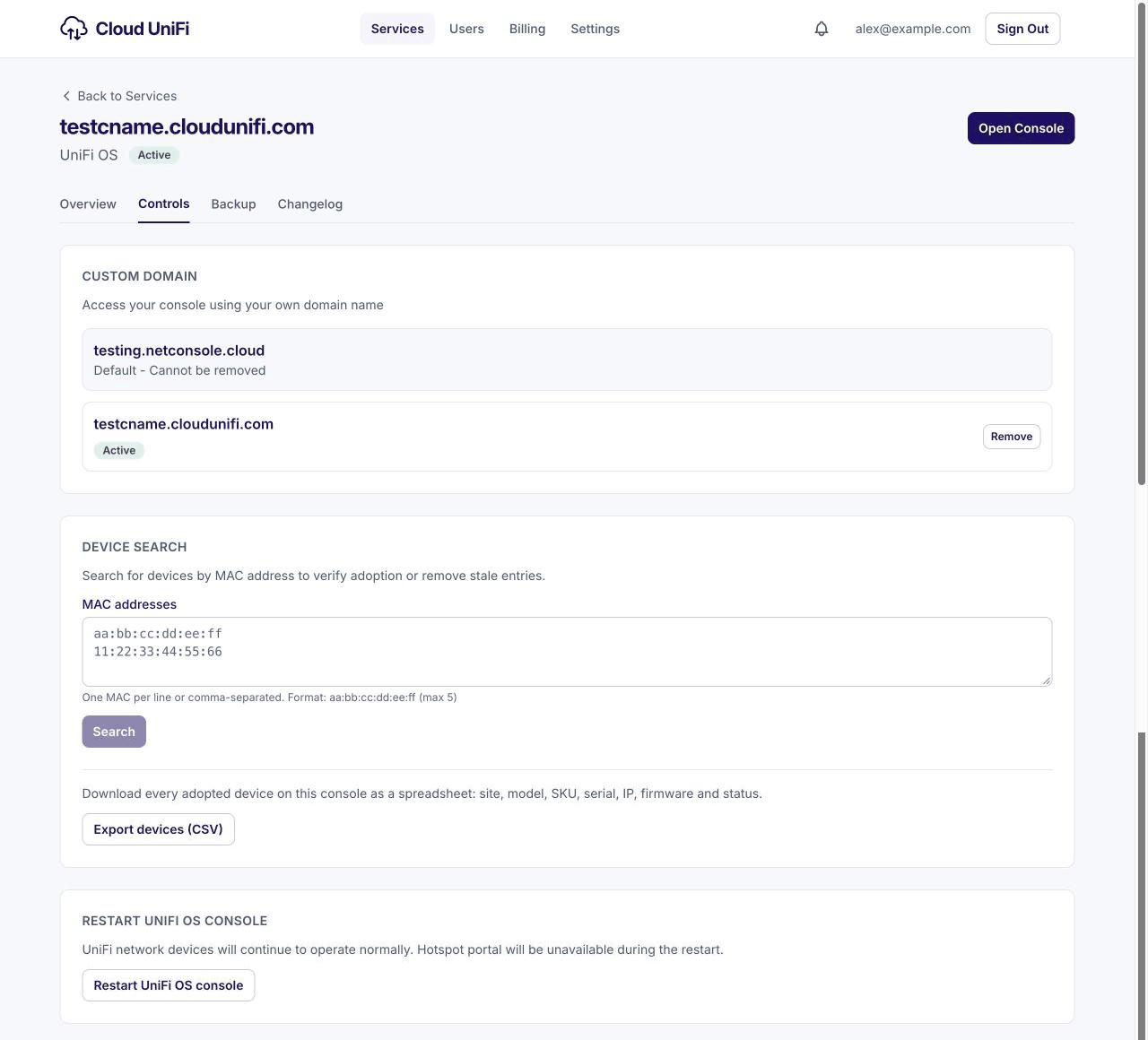
If a control in this table is missing from your service, contact us and we'll tell you why.
Custom Domain
Reach your service at your own name, such as unifi.example.com, with a certificate we issue for you. You create a CNAME record at your DNS provider, then add the name here. Your assigned hostname always keeps working and can't be removed.
The full steps, and the safe order for changing or removing a domain your devices use, are in Custom domain for UniFi and Custom domain for UISP.
Device Search
Find devices by MAC address, up to five at a time, one per line or separated by commas. The results show each device's name, model and the site it is adopted on. Use it to check where a device is adopted, or to remove a stale or unwanted device without hunting through sites.
To remove devices, tick them and click Delete Selected, then confirm. The Network application forgets them, and any that are online are reset to factory defaults. The Network application restarts briefly to finish. A deleted device has to be in its factory default state before it can be adopted again.
A search or delete can take up to five minutes.
Export devices (CSV)
Download every adopted device on the console or controller as a spreadsheet, across all sites. The columns are site, device name, model, SKU, device type, MAC, serial, IP, firmware version, whether it is online, and when it was last seen. It is handy for an asset register, a warranty check or an audit. A console with many devices can take a minute or two.
Restart
Restarts your console, controller or UISP. Your access points, switches and gateways keep passing traffic while it restarts. The hotspot portal is unavailable until it is back, so new guests can't sign in in the meantime. Try a restart if the interface stops responding.
Software Upgrades
Standalone Network Application only.
- Automatic Upgrades: when it is on, we upgrade your controller to each new stable release once we have tested it. When it is off, your controller stays on its current version until you upgrade it.
- Updates Available: pick a version and click Upgrade to apply a tested release yourself, whatever the switch is set to.
Your controller restarts during an upgrade; your devices keep running. On UniFi OS Server, updates are set in the console itself: see Updates on UniFi OS Server. For UISP, see UISP updates.
Upgrade to UniFi OS
Standalone Network Application only. When your controller can move to UniFi OS Server, the Controls tab shows Upgrade to UniFi OS Available. Click Upgrade to UniFi OS, choose which admin becomes the console owner, and accept. Your sites, devices and admins carry over, and the page shows progress until the move is done. Read Moving to UniFi OS Server with us before you start.
Some older services show Request Migration Access instead. Click it and we'll get in touch to enable the move for you.
Reset Controller
Standalone Network Application only. In the Danger Zone at the bottom of the Controls tab. It erases your controller's configuration and returns it to the setup wizard. Use it only when you can't get into your controller at all, for example after a restore that went wrong. Your devices keep running, but everything on the controller is lost.
Download a backup from the Backup tab first, so you can restore it in the setup wizard. You have to tick I understand this will erase my controller configuration before the button works.
FAQ
Does restarting from the portal take my network down?
No. Your devices keep passing traffic. You lose the management interface and the hotspot portal until the restart finishes.
Why don't I see the Controls tab?
Service pages need the Admin or Tech role. Users with the Billing role see the list of services only.
Why is there no Automatic Upgrades switch on my console?
UniFi OS Server has its own update settings inside the console. See Updates on UniFi OS Server.